
Table of Contents
Secure WordPress website maintenance is the most critical task for any site owner. With over 40% of the web powered by WordPress, it is a prime target for hackers and malicious bots. Ignoring security can lead to data theft, broken pages, and a ruined reputation.
You do not need to be a coding expert to protect your investment. By following a few logical steps, you can harden your site against the most common attacks.
In this guide, we will walk you through exactly how to lock down your digital presence. Let’s explore the essential strategies to keep your data safe.

Why You Must Secure Your Website
Many beginners believe their site is too small to be hacked. This is a dangerous misconception.
Hackers often use automated bots to attack sites indiscriminately. They are looking for vulnerabilities to exploit, regardless of your traffic numbers. They might want to steal data, distribute malware, or use your server resources for spam.
If you fail to secure WordPress website protocols, Google may blacklist your domain. This effectively kills your organic traffic overnight. Prevention is always cheaper and easier than recovery.
How to Secure WordPress Website: The Basics
Before installing fancy tools, you must handle the fundamentals. These simple actions close the biggest security holes.
1. Keep Core, Themes, and Plugins Updated
Outdated software is the number one cause of infections. Developers release updates to patch security vulnerabilities.
If you delay updates, you leave a door open for attackers. Make it a habit to log in weekly and apply all updates. You can also enable auto-updates for minor releases in your dashboard settings.
2. Use Strong Passwords and User Permissions
Brute force attacks attempt to guess your password millions of times. You can stop this easily.
Use a password manager to generate complex, unique passwords. Never use “admin” as your username. Create a new administrator account with a unique name and delete the default “admin” user.

3. Choose Secure Hosting
Your hosting provider plays a massive role in your site’s safety. Cheap shared hosting often lacks proper isolation between accounts.
If a neighboring site on a shared server gets hacked, your site might be at risk too. We recommend choosing a managed WordPress hosting provider. They implement firewalls and server-level scanning automatically.
Check out our guide on choosing the right hosting provider for more details.
Advanced WordPress Security Tips
Once the basics are covered, it is time to add layers of defense. These WordPress security tips will make your site a fortress.
4. Enable Two-Factor Authentication (2FA)
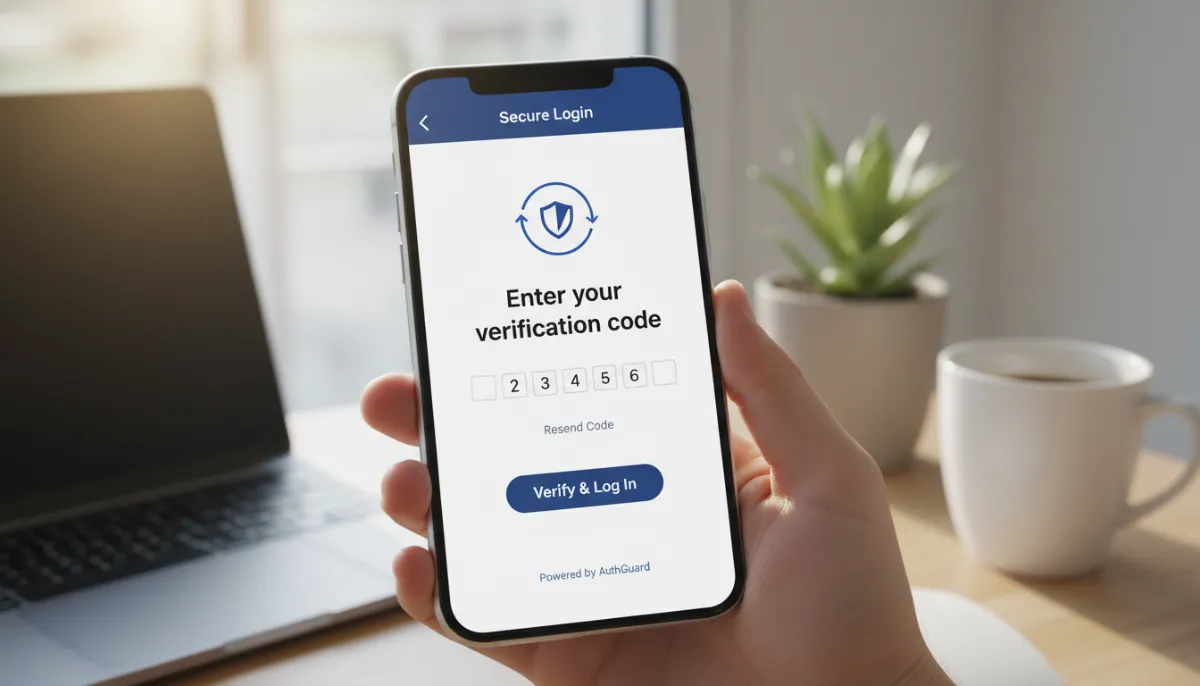
Two-factor authentication WordPress setups add a second step to the login process. Even if a hacker steals your password, they cannot access your dashboard without your phone.
Apps like Google Authenticator generate a temporary code you must enter to log in. This creates a nearly unbreakable barrier for unauthorized users.
5. Use HTTPS and SSL Certificates
An SSL certificate encrypts data transferring between your user’s browser and your server. It is the standard for the modern web.
Google gives a ranking boost to sites using HTTPS. Most hosting providers now offer free Let’s Encrypt SSL certificates. Ensure the padlock icon appears next to your URL.
6. Disable XML-RPC
XML-RPC is an older feature that allows remote connections to WordPress. However, it is frequently used by hackers to launch brute force attacks.
If you do not use the WordPress mobile app or third-party publishing tools, you should disable this feature. You can do this easily via a code snippet or a security plugin.
Best WordPress Security Plugins
You do not have to monitor everything manually. WordPress security plugins automate the protection process.
7. Install a Security Suite
Plugins like Wordfence, Sucuri, or iThemes Security are excellent choices. They provide a web application firewall (WAF) that blocks malicious traffic before it reaches your site.
- Firewall: Filters out bad bots.
- Login Limiter: Locks out users after too many failed attempts.
- Activity Log: Tracks changes made to your files.
For a deeper dive, read our comparison of the top security plugins for 2024.
8. Change the Login URL
Everyone knows the default WordPress login is at /wp-admin. This makes it easy for bots to target your login page.
Changing this URL to something custom, like /my-secret-login, reduces brute force attempts significantly. Plugins like WPS Hide Login can handle this in seconds.
Monitoring to Protect WordPress Site
Security is not a “set it and forget it” task. You need ongoing maintenance to protect WordPress site data effectively.
9. Regular Malware Scanning
Even with defenses in place, you should check for infections. Malware scanning tools look for malicious code hidden in your files.
Many security plugins include scheduled scans. If they detect a change in your core files, they will alert you immediately via email.

10. Automated Backups
Backups are your ultimate safety net. If a catastrophic hack occurs, a clean backup allows you to restore your site instantly.
Do not rely solely on your host’s backups. Use a plugin like UpdraftPlus or BlogVault to save backups to a remote location like Google Drive or Dropbox.
11. Log User Activity
If you have multiple authors or editors, you need to know who is doing what. Activity logs help you identify compromised accounts.
If an editor account suddenly changes the site theme at 3 AM, an activity log will help you spot the anomaly. For technical details on hardening, refer to the official WordPress Hardening Guide.
Conclusion
Learning how to secure WordPress website assets is a journey, not a destination. By implementing these 11 tips, you drastically reduce your risk profile.
Start with strong passwords and updates. Then, install a reputable security plugin and enable 2FA. Finally, ensure your backup strategy is robust.
Don’t wait for a hack to happen. Take action today to safeguard your business and your visitors. For professional help with cleanups, services like Sucuri are industry leaders.
By staying vigilant, you ensure your WordPress site remains a safe and profitable asset for years to come.


