
Table of Contents
Free up storage on android devices immediately if your phone feels sluggish or you can’t take new photos. Running out of space is a common frustration for smartphone users globally.
Seeing the “Storage Full” notification can be stressful. It stops you from downloading apps, saving videos, or even updating your operating system.
Fortunately, reclaiming your space is simple. You do not need to be a tech expert to fix this issue.
In this guide, we will cover proven methods to clean your phone. Follow these steps to maximize your device’s performance today.
1. Analyze Your Storage Usage
Before you start deleting things, you need to know what is taking up space. Android provides a clear breakdown of your data usage.
Go to Settings > Storage (or Device Care on Samsung). Here, you will see a colored bar chart.

This chart shows how much space is used by images, videos, audio, apps, and system files. Usually, photos and apps are the biggest culprits.
Identifying the largest categories helps you target your efforts. There is no need to delete text messages if your videos are using 10GB of space.
2. Clear Cache on Android Apps
One of the quickest wins is to clear cache on android applications. Apps store temporary files to load faster, but these files pile up over time.
Social media apps like Facebook, Instagram, and TikTok are notorious for hoarding cache data. They can easily accumulate hundreds of megabytes.
Follow these steps to clear the cache:
- Open Settings.
- Tap on Apps or Application Manager.
- Select a heavy app (e.g., Chrome or YouTube).
- Tap Storage.
- Select Clear Cache.
Important: Do not tap “Clear Data” unless you want to reset the app completely. Clearing data removes your login details and preferences.
Repeating this for your most-used apps can instantly free up storage on android without deleting personal files.
3. Uninstall Unused Apps
We all download apps that we use once and forget. These “zombie apps” sit in the background, taking up valuable space and sometimes draining battery life.
It is time to be ruthless. Scroll through your app drawer. If you haven’t opened an app in three months, you probably don’t need it.
To uninstall unused apps:
- Long-press the app icon.
- Tap Uninstall or the “i” info button.
- Confirm the action.
Some pre-installed apps (bloatware) cannot be uninstalled. However, you can often “Disable” them. This prevents them from running and updating, which saves some space.

Gaming apps are often very large. Removing just one heavy game can resolve your android storage full warning immediately.
4. Move Photos to Cloud Storage
High-resolution photos and 4K videos consume massive amounts of storage. Keeping every memory locally on your device is inefficient.
The best solution is to move photos to cloud services. Google Photos is the most popular option for Android users.
Enable the “Back up & sync” feature in Google Photos. Once your media is safely in the cloud, you can use the “Free up space” button within the app.
This action removes the local versions of photos that are already backed up. You can still view them in the app whenever you have an internet connection.
Other reliable alternatives include:
- Dropbox
- Microsoft OneDrive
- Amazon Photos
Offloading media is essential if you want to free up storage on android for the long term.
5. Use Built-in “Free Up Space” Tools
Modern Android versions come with intelligent storage managers. These tools automatically identify junk files for you.
Google’s “Files by Google” app is pre-installed on many phones. If you don’t have it, download it from the Play Store.
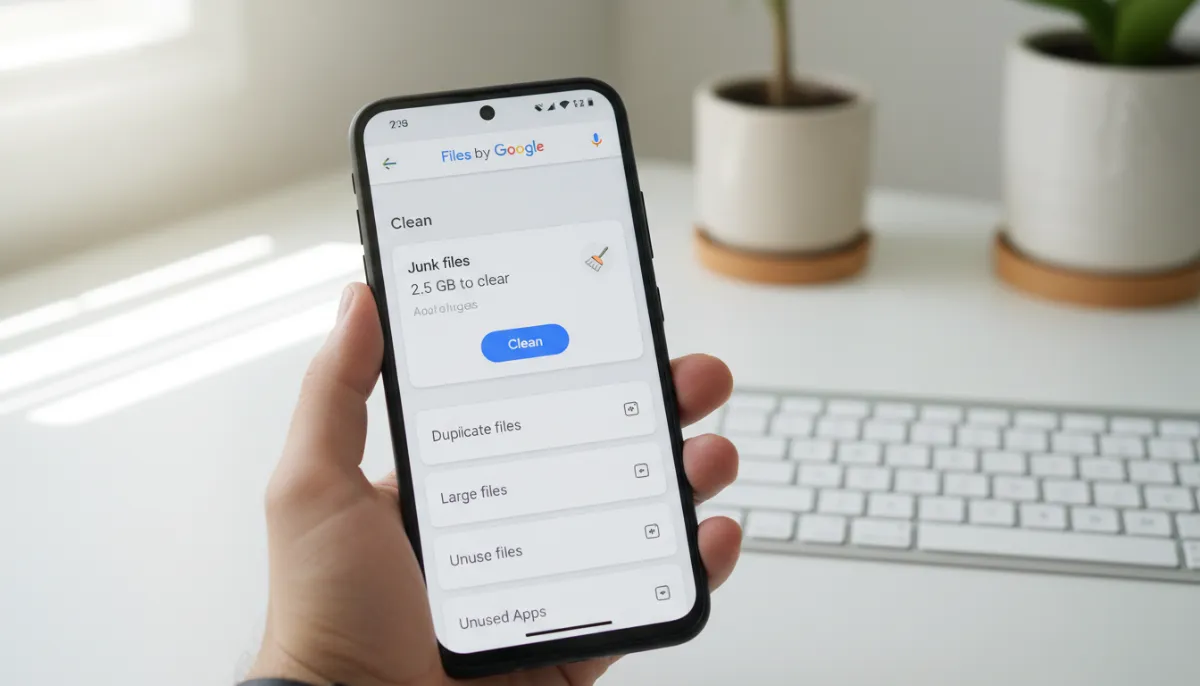
Open the app and tap the Clean tab. It will suggest:
- Deleting junk files (temporary system files).
- Removing memes (low-quality images).
- Deleting large files.
- Removing downloaded files you no longer need.
Samsung users can use “Device Care” in settings to perform a similar cleanup. This automated process makes it incredibly easy to free up storage on android in seconds.
6. Delete Old Downloads and Duplicate Files
Your “Downloads” folder is likely a graveyard of old PDF menus, APK installers, and random images. We often download files to view them once and never delete them.
Open your File Manager app and navigate to the Downloads folder. Sort the files by size.
Delete anything you do not need. You might be surprised to find gigabytes of old data hiding here.
Next, look for duplicates. It is common to accidentally download the same file twice or save the same photo in different folders.
To delete duplicate files efficiently, use a dedicated app like “Files by Google” mentioned earlier. It specifically scans for exact copies of files and allows you to remove them with one tap.
Clearing these redundant files is a smart way to maintain a healthy device.
7. Transfer Data to an SD Card
If your phone has a microSD card slot, you have a huge advantage. You can expand your storage cheaply and easily.
Move media files like music, movies, and photos to the SD card. This keeps your internal memory free for apps and system updates.
You can also configure your camera app to save new photos directly to the SD card. Check your camera settings to enable this feature.
Some apps also allow you to move their data to external storage. Go to Settings > Apps, select an app, and look for the “Change” button under Storage.
If your phone lacks an SD slot, consider using a USB OTG (On-The-Go) drive to offload files physically.
For more tips on device maintenance, check out our guide on optimizing android battery life.
Conclusion
You do not have to live with the constant “Storage Full” warning. By following these steps, you can free up storage on android devices quickly and effectively.
Start by clearing your cache and deleting unused apps. Then, leverage cloud backups to handle your photo library.
Regular maintenance is key. Check your storage status once a month to prevent junk from piling up again.
A clean phone is a fast phone. Enjoy the extra space and the improved performance.
If you are looking for more ways to speed up your device, read our article on how to boost android performance. For official support on managing space, you can also visit Google’s Android Help page.


